How many images can I attach from Canva to Storefries at a time?
Only one image can be edited and attached at a time from the Design on Canva option.
Can I download photos created from the Canva button?
Yes. There are two ways to do this:
The first is, once you publish a design created via Canva, it will be auto-saved to your Media Library.
- Simply click on the design, to open a preview.
- Right-click on the design and select "Save Image as" to download it.
You can also create and import a design from Canva directly to your media library with the Upload Media option under Media Library:
- Go to Posts
- Go to Media Library
- Click on Upload Media
- Simply click on the design, to open a preview.
- Right-click on the design and select "Save Image as" to download it.
What are the tools in the Canva button?
There is a variety of tools available on the Canva button.
You can crop your image, add filters, change the transparency and add filters. You can also find these other features inside the Canva button,
Some of the main features are-
Template: Choose from a range of pre-made templates to post.
Elements: Choose different image vectors, shapes, and frames to enhance your design.
Text: Choose from different fonts, font styles, and colors.
Photos: Find images from Canva's library
All your designs: Previous creations on your Canva account can be accessed here from the Folders option
Where do I find the Canva button on storefries?
You can find the Canva button in multiple places on Storefries, wherever the Attach image/media button is available.
Here are some key places:
Access the Canva button from the Publishing window, under the Media attachment option, find the Design on Canva button is shown.
Users can also import images from Canva to our Media Library section and other places in storefries such as Monitor Tab, Posts tab, etc.
How do I save photos from Canva to Social's Media Library?
Here is how:
- Go to the Posts tab on Social
- Head to Media Library Section
- Click on the upload media icon
- Press the Design on Canva button
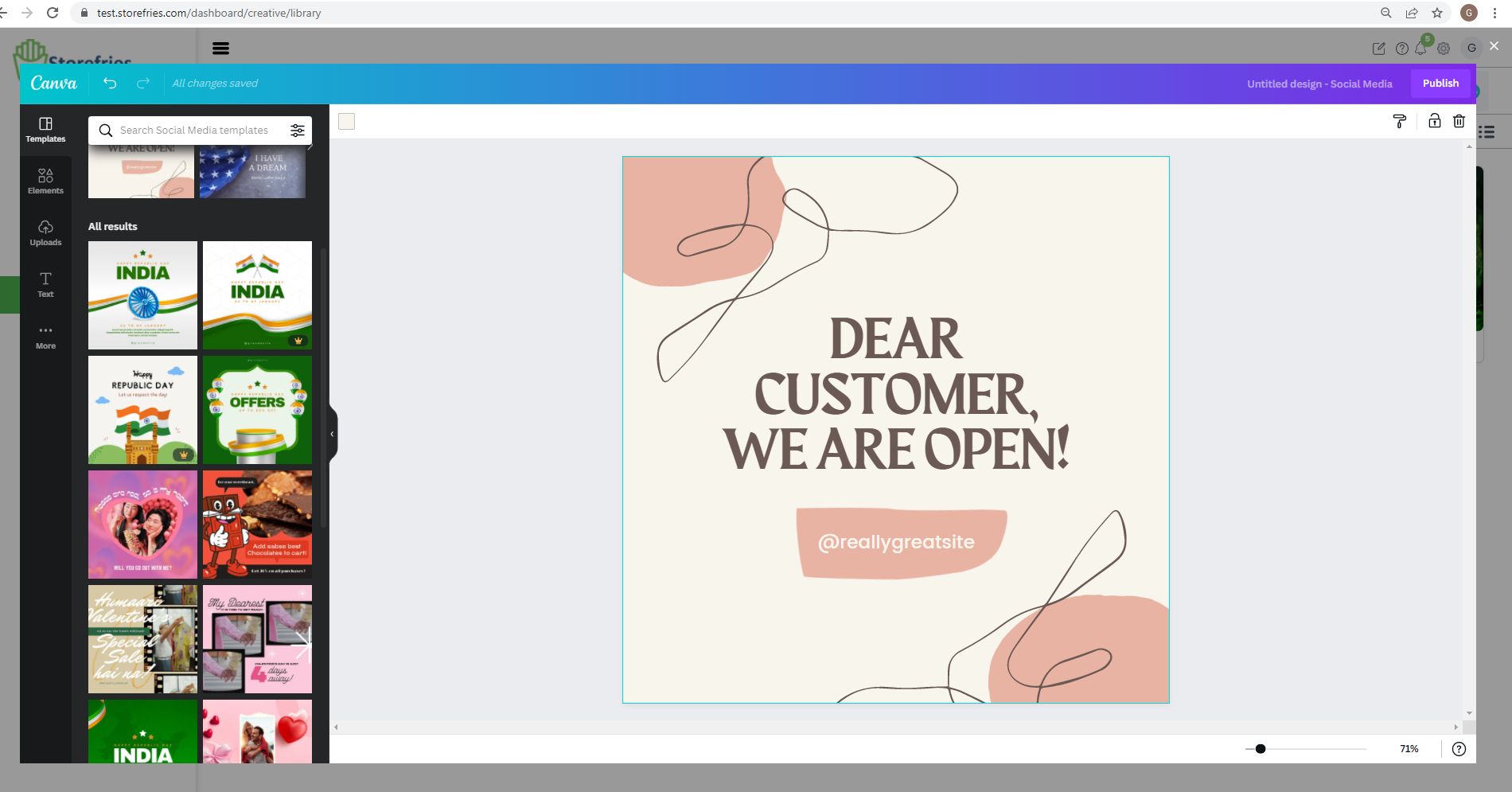
This canva frame will pop up:
After creating, click on the Attach button to import the design to the Media Library
Note:These designs can now be accessed by your team anytime.
Canva is a design platform that is used by marketing teams around the world. Canva button is a feature that brings this tool to storefries 's application.
It lets you create and edit social media designs from anywhere within our application.
Easily create designs for social media networks such as Facebook, Instagram, Twitter, and more. Choose from different preset templates and other graphic
elements to make new designs without leaving the storefries app. The user-friendly interface lets social media marketers make professional-looking designs.
You can use also use the Canva button for editing your images. If you have an existing design that could use some changes and enhancements, you can upload
it to Canva from your desktop, edit, and publish it. Simply without switching from storefries.
Where can I access this from?
a. An important place you can access the Canva button is on the Publishing window, under the Media attachment option, find the Design on Canva button.
b. After an image is added from Canva to the publishing window, if it still needs more changes, you can click anytime on the Edit on Canva button on it.
c. You can also import images from Canva and store them in storefries Media Library. This library can be accessed from any time, anywhere by you and your team.
d. Canva button is also available on multiple places on storefries.