Go to your setting to allow the location before your post to Social Media.
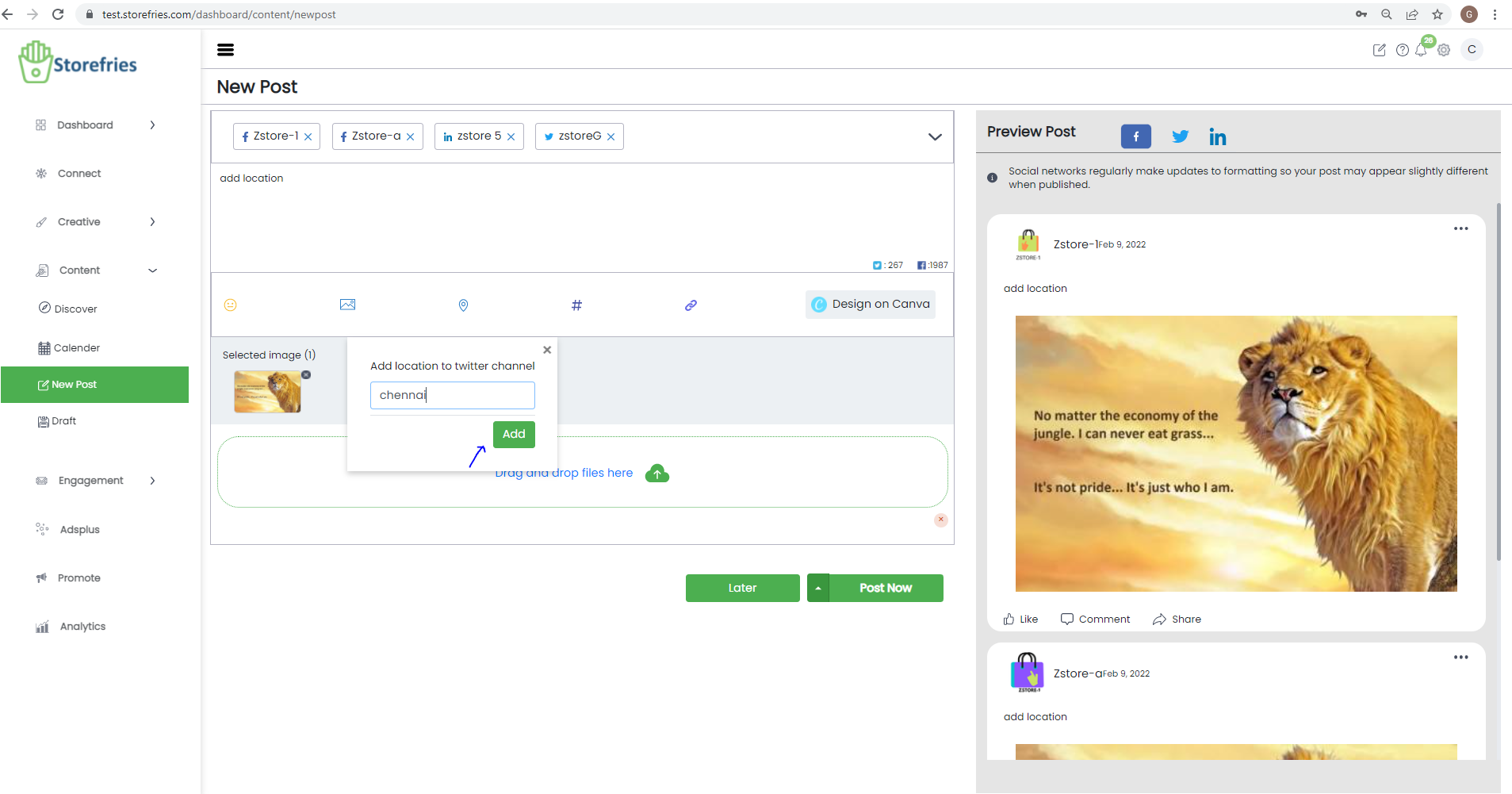
- Click to Add a location to your post from Storefries on web.
- Now, type in the location you want to add or select one from the list of suggested locations by storefries based on your current location.
- Click to add Profiles Twitter and Facebook Location or whatever Profiles you want to add.
- Enter your City
- Click to add location
1. Can I add location for all social channel?
You would be able to include location to your Twitter channel and Facebook channel right at the moment. Head over to our community,
to know more about updates regarding the same.
2.Why am I not able to add location for the Twitter post I create on storefries?
To add location to the Twitter post you create, you need to check if Location Tagging on your Twitter account is enabled.
Follow the steps below to understand how.
- Log into your Twitter account and click on More (...) button on the left panel.
- Now, tap on the gear icon- Settings and privacy.
- Click on Privacy and safety followed by Location information under Data sharing and off-Twitter activity.
- Under the Location information option, tick the Add information to your Tweets checkbox to enable location detection for your Twitter account
Similarly, to remove the location tagging, click on Remove all location information attached to your Tweets option.
How to use Hashtag suggestion:
Having a hard time finding unique, relevant hashtags for your posts? storefries 's Hashtag Suggestions can help:
Important:
- Hashtag Suggestions is only available through storefries on the web
- Hashtag suggestions is available on the all plans
- Get unlimited Hashtag Suggestions on storefries's for Free ,Basic and Pro plans.
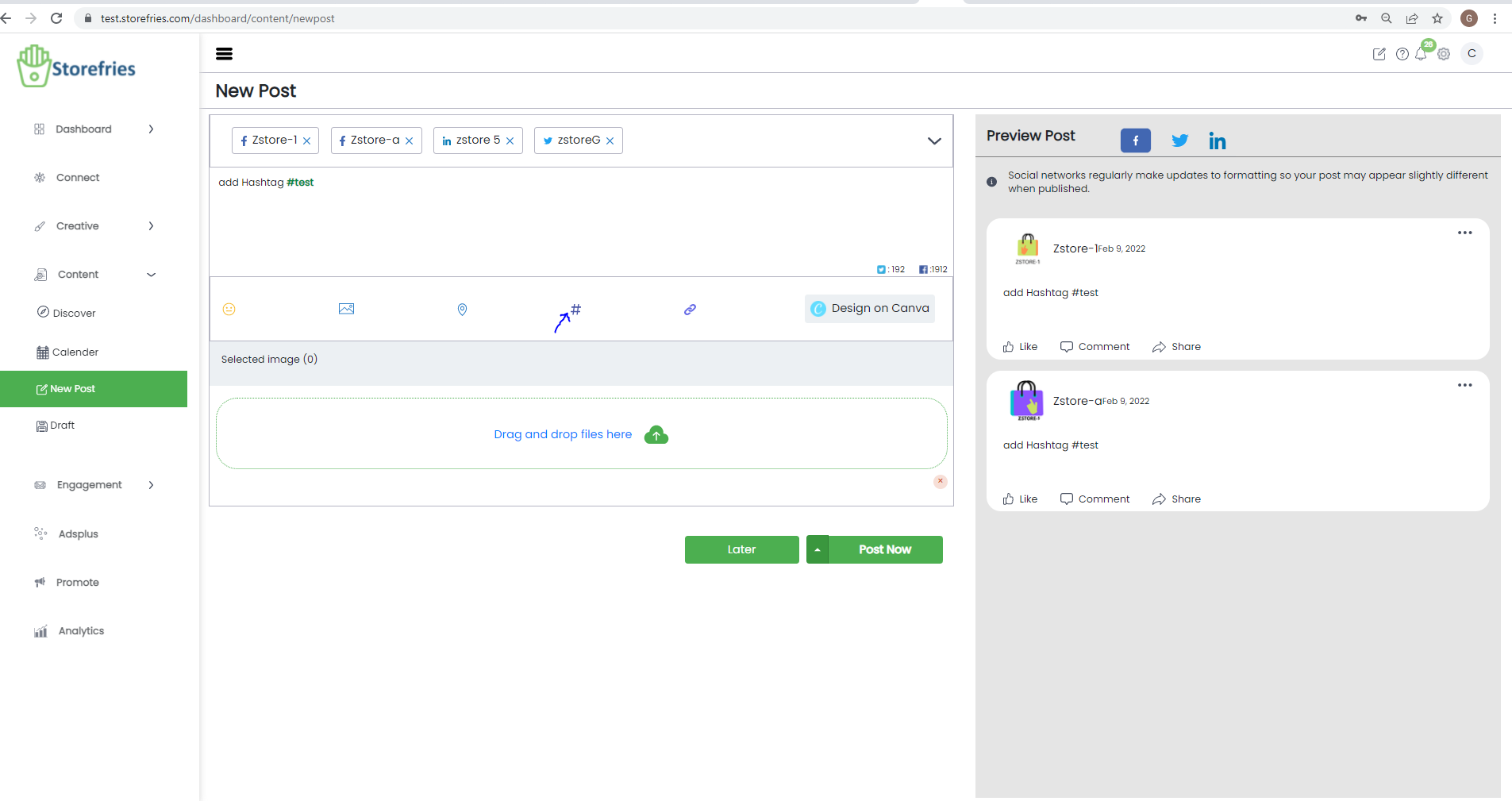
How to Use Hashtag Suggestions:
Hashtag Suggestions can help you find relevant hashtags to add to your post. Here’s how:
Tip: Create Saved Captions with your most frequently used hashtags to save time.
Can I disable URL shortener for a particular post/ all posts?
To disable URL shortener for particular post, simply click on the URL shortener icon on the bottom of the Publishing Window.
When the icon is orange, it indicates that it is enabled. When the icon is grey, it indicates that URL shortening is disabled. To
enable it again for future posts, simply click on the greyed out icon.
How to add storefries and Bitly ?
- Go to storefries on web,to shortner the link
- you have to select a link, to post whatever you want from the websites
- After copy the link to post , click shortner the link to post on Storefries on Web
- Storefries Shortner has default link shortner.
How can I create short URLs?
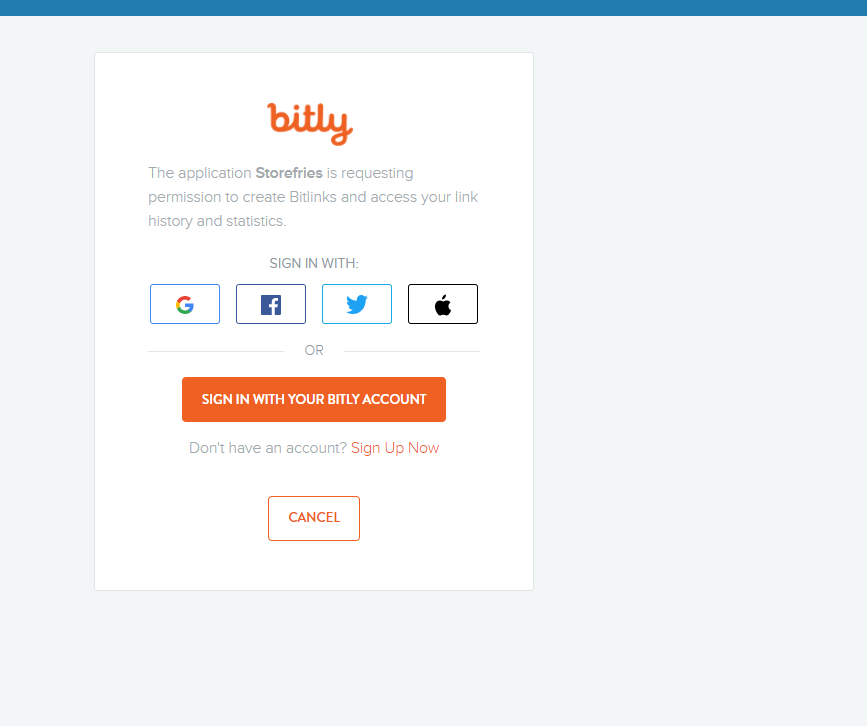
There are two ways to creating short URLs on Storefries .you if you have a Bit.ly account, you can integrate it
with your storefries for link shortening.
Once you have selected one of the options, follow these steps to shorten any URL:
- Go to the homepage.
- Click New Post.
- Paste your original URL in the compose box.
- You'll see an option to shorten link.
- Select the option, and your shortened URL will be ready.
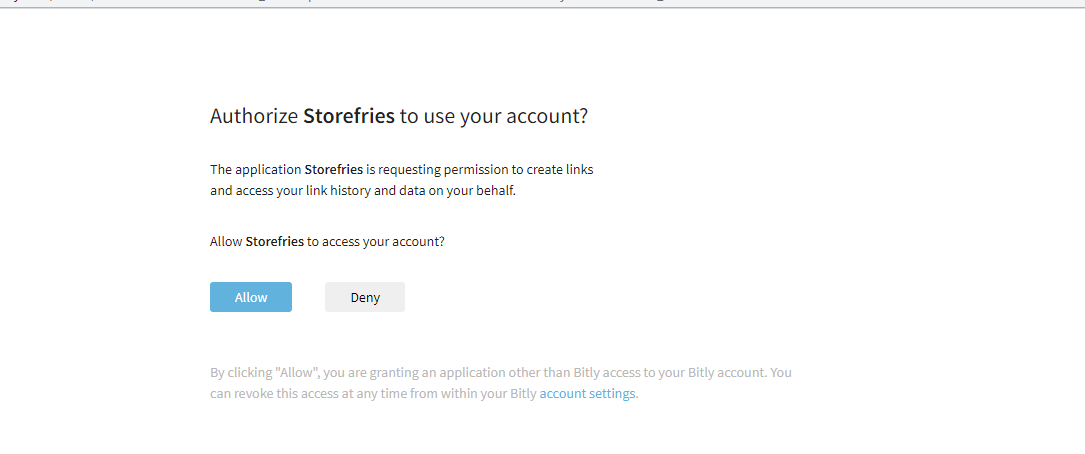
Note: Bitly can't use to free Plan,if you want bitly to post plan will be upgrade .