Newpost:
Scheduled ,Published and Draft image to social Profiles with Storefries:
Add your Facebook Business Page to Storefries to schedule and Auto Publish posts to Scheduled .
Then also Published post,Scheduled -on time and save image to Draft.
Schedule Post:
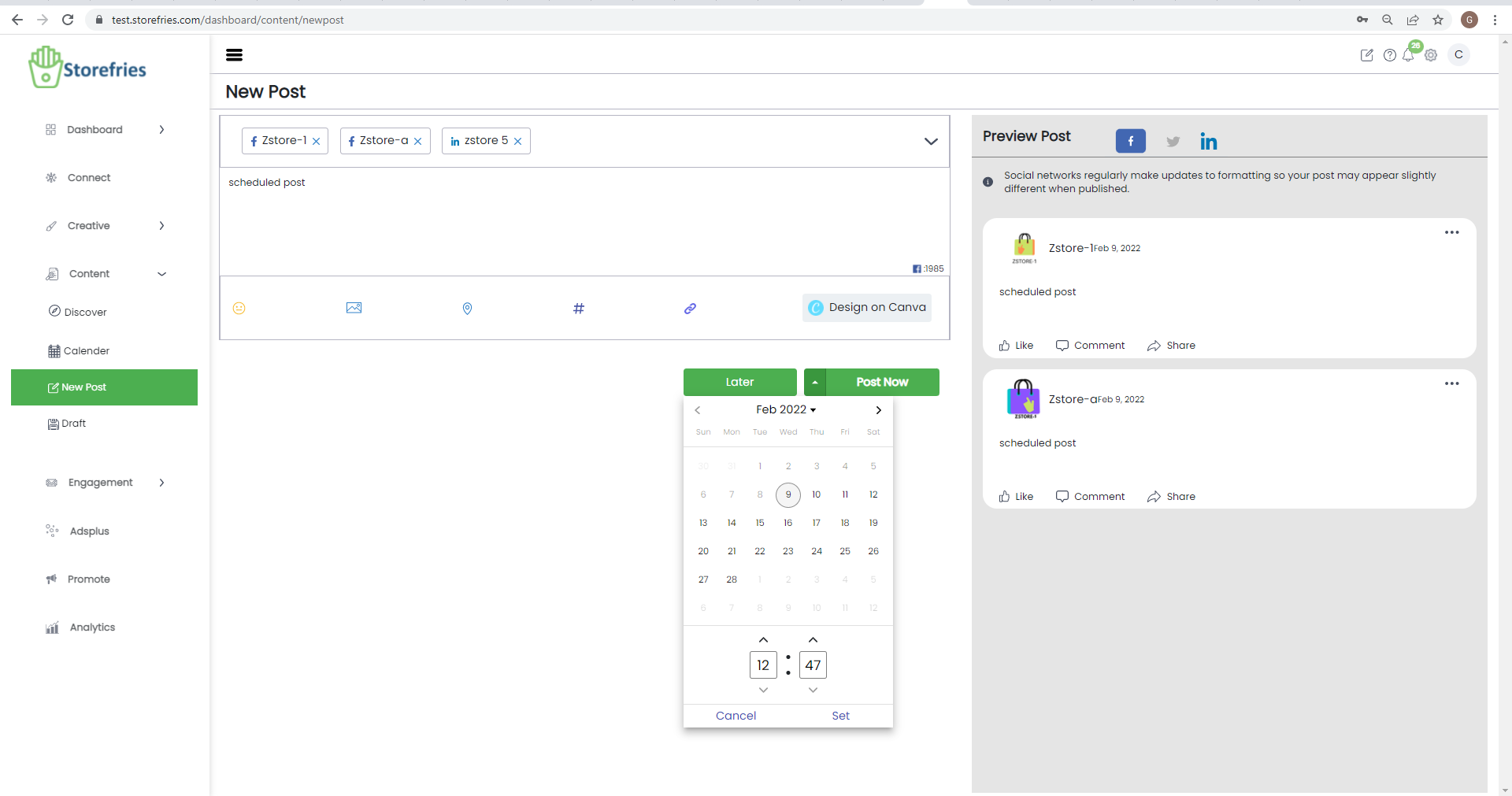
Tip: To bulk schedule posts, create your own Quick Schedule for Social profiles
Note: When you schedule a Multi-Photo post on Storefries it will show up as a photo album post on Facebook, not a carousel.
Can I Schedule to My Personal in Storefries ?
Due to limitations set by social Profiles ,storefries is not able to support scheduling for personal Facebook profiles.
With storefries, you can schedule posts to your Facebook Business Page and we'll automatically publish them for you.
Schedule One Post to Multiple Social Profiles:
Looking to schedule one post to multiple social profiles? With Storefries you can schedule posts for multiple profiles at the same time, and customize the post for each.
Important:
- Multi-profile scheduling can only be done in Storefries on the web
- Once a post has been scheduled, it can’t be added to additional social profiles
- Social profiles must be in the same Access Group to schedule to them at the same time
Rescheduling Unpublished Posts:
Unattempted posts
Unattempted Posts displays a list of posts that failed to go live when you published them. This could happen when there's an error in sending a request to the concerned
social media networks while publishing your posts. You can reschedule the Unattempted Posts from the Posts tab, or from the Calendar view.
Failed Posts
Failed Posts displays a list of your scheduled posts that weren't published. This usually happens when you publish a duplicate post, or when the social media channel
you're publishing to needs to be reconnected for security reasons, or due to an error in the image size. Once you correct the problem, you can schedule your posts again.
You can reschedule the Failed Posts from the Posts tab, or from the Calendar view.
Rescheduling Posts from the Posts tab:
To reschedule unattempted and failed posts:
Published Post:
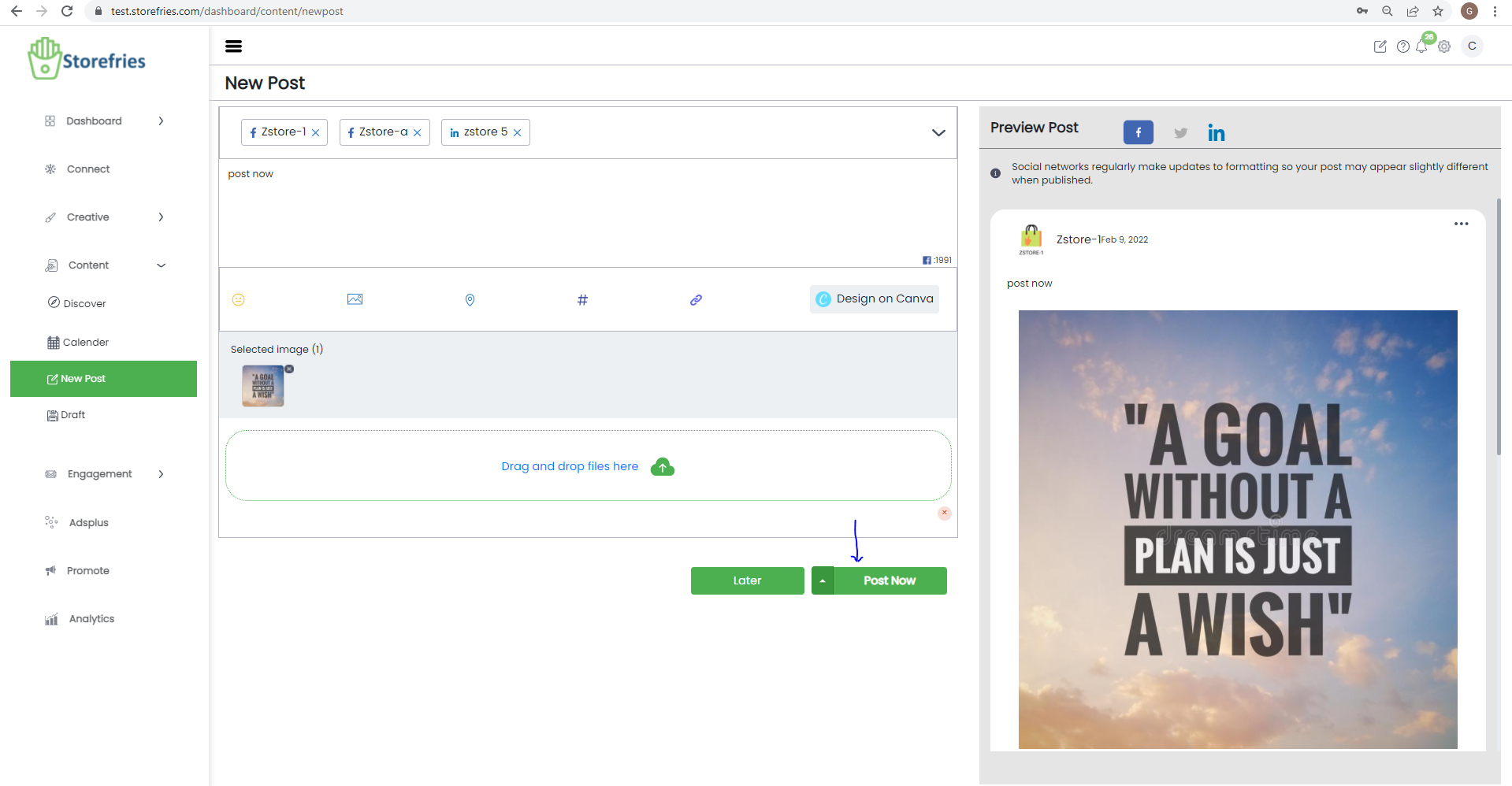
If you add a link to a Facebook, Twitter, or LinkedIn text post, you can use tools to check Profils will look like before publishing.
Draft Post :
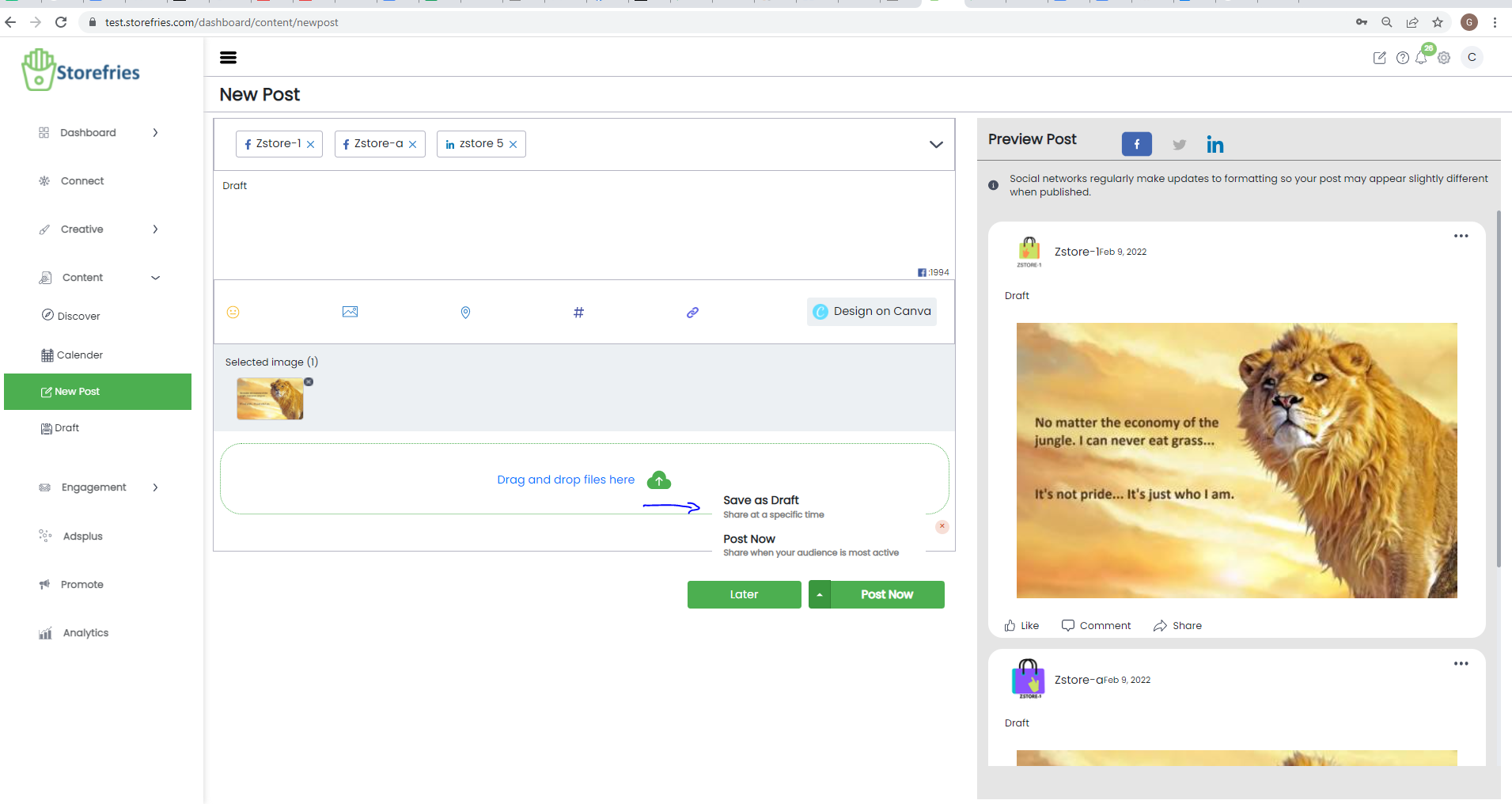
If you Add a Facebook,Twitter and Linkedin Profile to Connect With the draft Profile.
Here are some points to note when you're managing drafts:
Editing Drafts saved by other users:
Here are some points to remember when you're managing draft posts saved by other users:
To publish the content right away, click Post Now and the post will go live on the social channels you've selected from the Publishing window.
Please note that Storefries Social transfers the ownership of content to the user who last edits, publishes, or schedules the draft post.