As a content producer, I’ve spent years refining workflows and testing countless editing tools under tight deadlines. Managing short timelines, diverse formats, and creative pressure taught me the value of efficiency. Manual edits often slowed progress, wasting creative energy better spent on ideas.
After testing multiple solutions, I shortlisted the most reliable software powered by a video AI generator. These tools simplify creation, automate tasks, and enhance storytelling. Among them, CapCut stands out for speed, precision, and effortless professional results.
Blog Contents
10 Cutting-Edge Free Online AI Video Makers for 2026 Creators
Tips for Selecting AI-Enhanced Video Editing Software in 2026
Main Findings
After testing numerous platforms that claim to turn pictures into videos, I’ve included only those that truly deliver. Every AI video generator on the list below presents its own advantages, be it realistic motion lift, imaginative narrative, or Instagram-fast video clips. Here are my top picks for 2026.
| Software | Key Features | Ideal For |
|---|---|---|
| CapCut | Instant AI video from images; 100+ avatar styles with lip-sync; smart templates auto-populated by text; voice cloning in 20+ languages; one-tap effects and transitions; 4K export with auto-keyframing. | Content creators, professionals, amateurs |
| Kaiber | Audio-reactive visuals with beat-sync; image-to-motion style presets; 3D camera paths; loopable animations; lyric-driven scene shifts; real-time preview rendering. | Music visuals and stylized motion |
| Kling AI | Hyper-realistic text-to-video up to 30 seconds; strong physics-based motion; multi-subject tracking; cinematic camera presets; negative prompt control; extended clip stitching. | Realistic text-to-video |
| Pika Labs | Fast iterative generations; unique artistic styles per prompt; motion brush for local edits; lip-sync from audio; style reference upload; batch variant creation. | Concept motion and artistic looks |
| HailuoAI | Director-style scene control; camera angle presets; multi-shot timelines; emotion-driven character animation; lighting and weather simulation; prompt weighting system. | Director-style control |
| OpenAI Sora | Photoreal motion with depth; complex scene interactions; long-form coherence up to 60 seconds; detailed prompt parsing; multi-angle consistency; experimental physics engine. | High-fidelity experimental generation |
| Google Veo | Audio-integrated video generation; seamless sound-to-visual sync; multi-modal inputs (text/audio/image); adaptive frame rate; cross-clip continuity; Google ecosystem integration. | Audio-integrated videos |
| Seedance | Scalable short-clip production; batch generation queues; throughput optimization for teams; template-based consistency; auto-caption sync; cloud rendering acceleration. | Scalable short-clip production |
| Vizard AI | Editing-first AI workflow; timeline-based generative inserts; auto-highlight detection; collaborative clip suggestions; real-time co-editing; export presets for platforms. | Editing-first workflows |
| Vidu | Repurposing and batch exports; automated caption generation; multi-language subtitles; one-click reformatting; asset library integration; template assembly lines. | Repurposing and batch exports |
Behind the Selection Process
For this 2026 list, I personally tested all ten AI video makers across different creative workflows on my MacBook Air (M3). My goal was to experience their actual usability, automation power, and production efficiency in real content creation. Having used over 50 AI editing and generation tools in the past few years, these ten truly stood out for their speed, creative flexibility, and practical AI assistance.
When narrowing down the best free online AI video makers, I focused on several essential factors that matter most to creators:
• Ease of Use: Tools should be intuitive, allowing even beginners to create without a steep learning curve.
• AI Features: Smart automation like text-to-video, AI avatars, and voice synthesis should work consistently and deliver smooth results.
• Customization: The freedom to edit templates, transitions, and effects ensures every video fits personal or brand style.
• Audio Tools: Integrated AI voiceovers, voice changers, or sound enhancement features enhance professional polish.
• Video Output Quality: Final videos should meet social and presentation standards with crisp visuals and proper resolution.
Based on these factors, I excluded any software that felt overly complex, paywalled core functions, or produced inconsistent outputs. The purpose here is not only to highlight tools that perform well but also to recommend those that feel seamless and accessible to creators of all skill levels.
Each tool listed here blends usability with innovation — designed to turn ideas into ready-to-share videos faster than ever. Whether you’re creating social reels, explainer clips, or visual stories, these 2026 AI video makers ensure your creativity stays at the center, powered by intelligent automation.
.PNG)
10 Cutting-Edge Free Online AI Video Makers for 2026 Creators
1. CapCut
CapCut is a flexible AI-oriented video editing software designed to create and refine content faster. It is a combination of a conventional timeline editor and strong generative tools. Users can produce full videos from text prompts, and use over one hundred AI avatar options for on-screen presenters. The templates and an Instant AI Video wizard accelerate production.
.PNG)
The platform contains brainstorming tools, automatic pacing, voice cloning to provide a personal narration. Exports favour social formats and high resolutions. For creators focused on short-form content, CapCut doubles as a YouTube Shorts maker and social editor. The interface is user-friendly. High-level automation minimizes redundant activities. What comes out is a platform that assists in creating refined, shareable videos in a short period, but still has manual controls where necessary, and collaboration.
Highlights & Features:
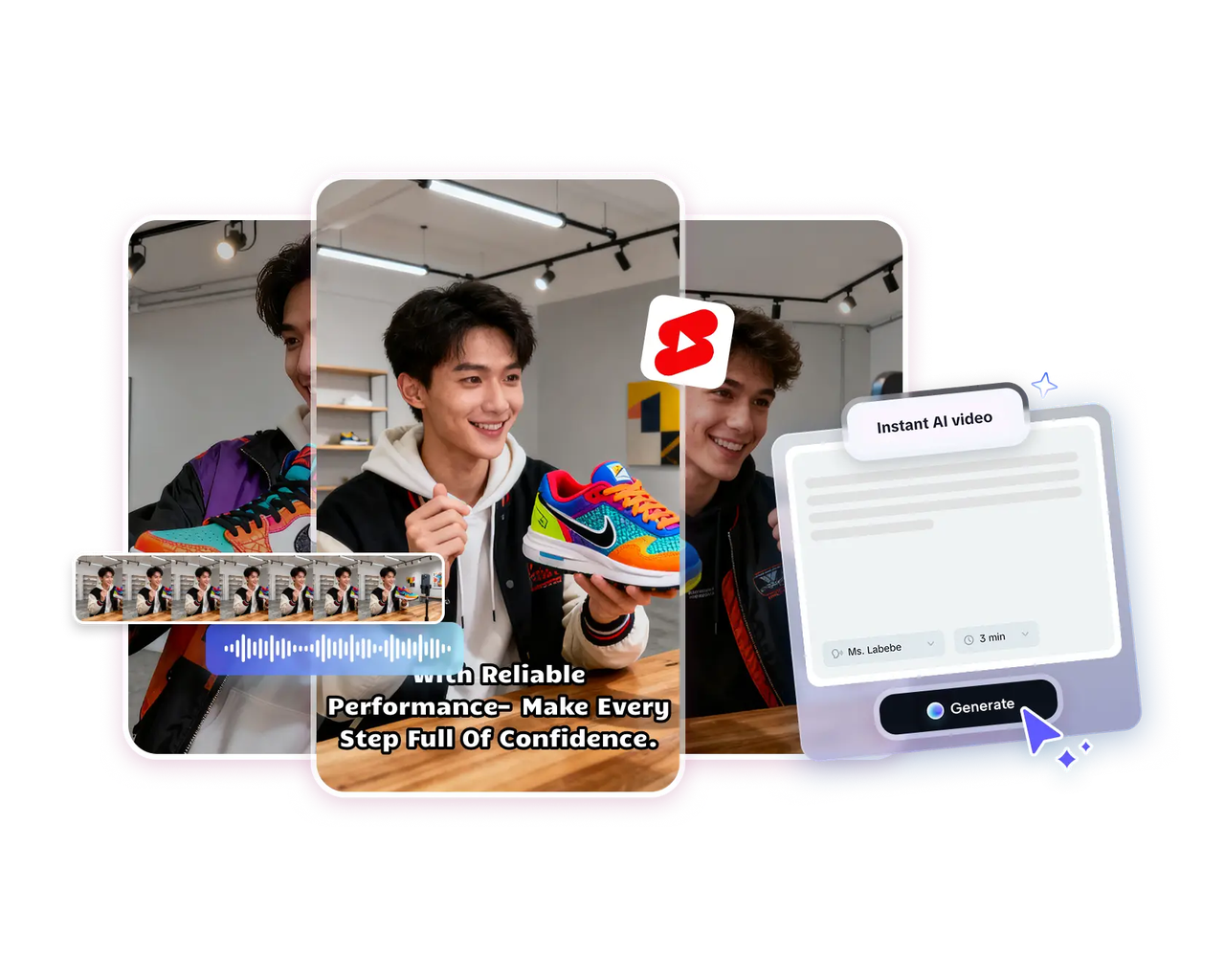
Instant AI Video Creation: This feature enables complete video production from a simple script and style selection. It automates scene generation, visual matching, and narration to deliver polished results in minutes.
AI Avatars: Offers access to over 100 digital presenters, along with the option to clone a personal avatar. Ideal for creating consistent on-screen hosts for training, marketing, or news videos.
Voice Cloning: Generates custom voiceovers using short recordings. The cloned voice maintains natural tone, pitch, and emotion for authentic narration.
Brainstorm Assistant: An intelligent ideation tool that helps develop concepts, storyboards, and detailed outlines. It supports creative direction from initial idea to final script.
Social Exports: Automatically optimizes videos for social media platforms, including vertical and square formats. Perfect for platforms like Instagram, TikTok, and YouTube Shorts.
One-Click Pacing: Balances timing, transitions, and scene flow with a single click. It ensures smooth rhythm, making videos look professionally edited without manual adjustment.
Available on: Web, Windows, macOS, Android, iOS
Overall: ★★★★★ (4.9/5)
Beginner-Friendly Tools: ★★★★★ (5/5)
Price: Free with Pro plan from $19.99/month
Advantages
• Rapid one-click video generation from scripts and chosen visual style.
• Over one hundred avatar choices for presenter-style, on-screen delivery.
• Extensive template library for social, marketing, and education formats.
• Built-in brainstorming assistant reduces planning friction and deadline stress.
• Intuitive timeline editing for fast manual tweaks when needed.
Disadvantage
• Some features require pro account to access.
Three Steps to Make Tutorials Using CapCut video AI generator
Step 1: Create Your Script
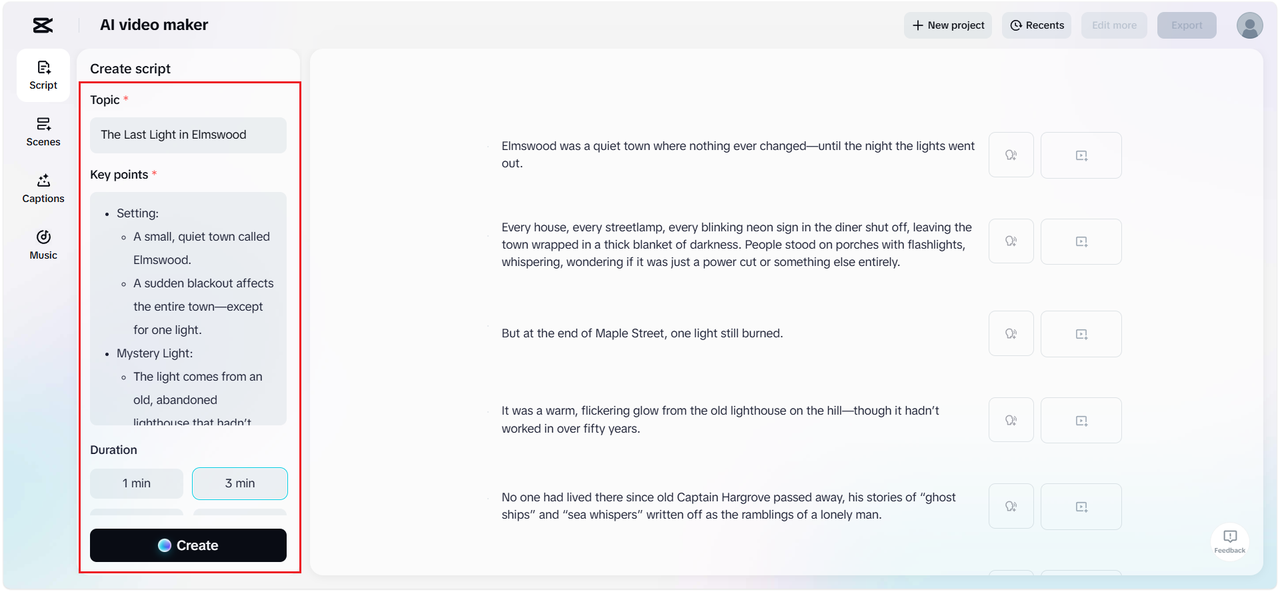
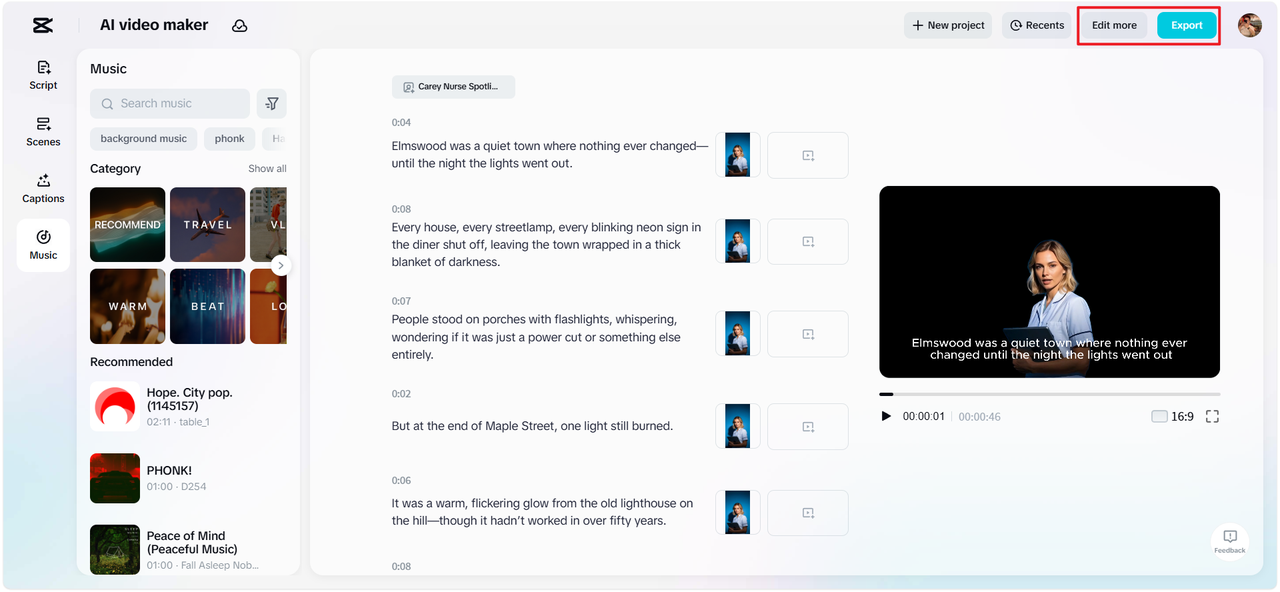
To create onboarding tutorials, begin with the “Script” feature in CapCut Web. Enter your topic and key points. Once you’re satisfied, click “Create” to proceed.
Step 2: Edit Your video
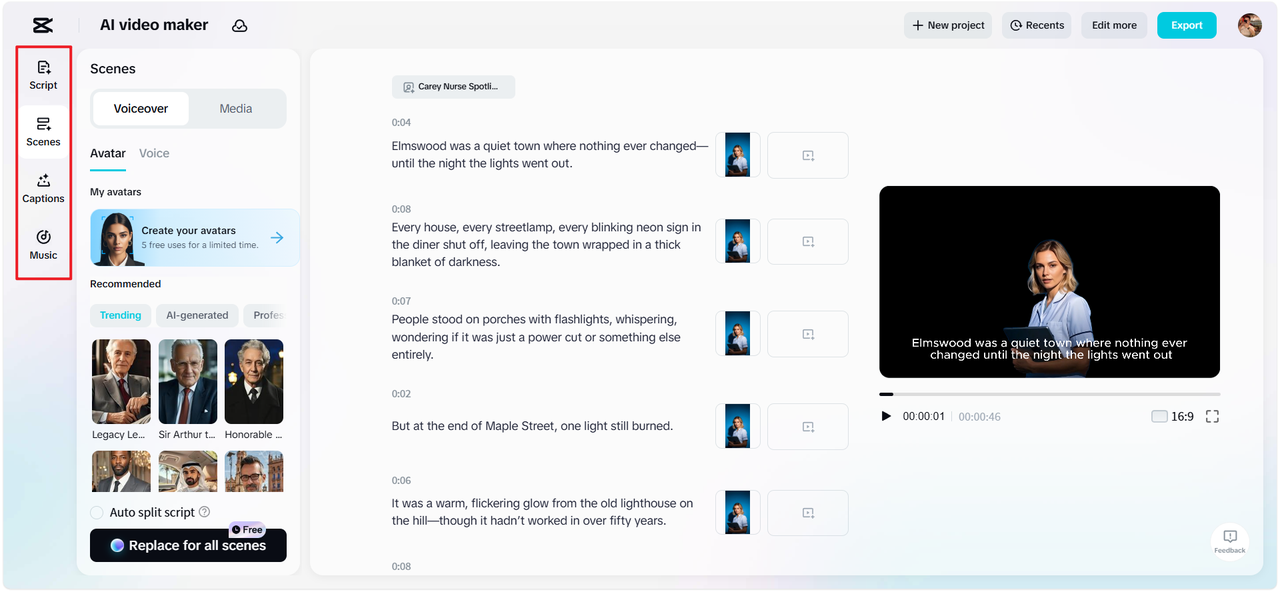
Next, move to the “Scenes” section. Here, you can assign voiceovers to each part of your script. You can also generate AI avatars or select from an existing list. If your focus is only on voice, go to the “Voice” page and select your preferred tone. Then hit “Apply for all scenes.” Enhance your visuals by adding styled captions from the “Captions” feature. The music library offers a variety of background tracks to elevate the viewing experience.
Step 3: Export or Edit More
Finally, preview the completed video. If it meets your needs, press “Export” and select your desired export settings. Want to enhance it further? Click “Edit more” to open the CapCut Web’s full video editing workspace where you can fine-tune visuals with filters, graphics, and stock elements.
Personal Experience
I used CapCut to produce a YouTube Shorts campaign for a product launch. The AI Video Creation tool took my written script and generated a full preview in less than three minutes. I tested over ten avatars, finally selecting one that matched my tone. The AI voice cloning captured my accent precisely, and the pacing feature automatically synced transitions with the beat. I exported vertical clips optimized for social platforms, ready to post without extra editing. The experience was effortless — the automation did most of the heavy lifting while still giving me control for fine-tuning. Among all tools I’ve tested, CapCut is the most reliable blend of creativity, speed, and professional quality.
2. Kaiber
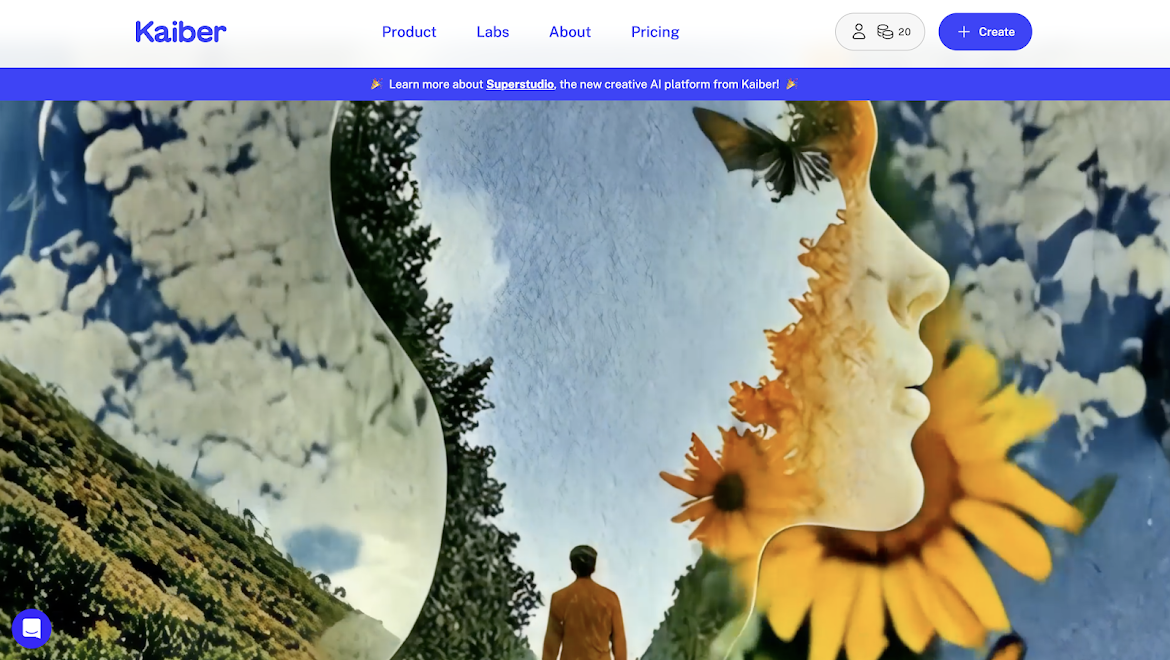
Kaiber is a creative based video editing software that concentrates on stylized motion. It converts text, pictures and music into animated frames. Instruments highlight rhythmic generation, which is complementary to music tracks. Timeline editor allows overlaying and export preferences. Kaiber is a master of concept images and music loops. Outputs are usually appropriate with artistic promos, album visuals and short social clips.
Key Features
• Audio-Reactive Motion: Syncs visuals to music beats.
• Text-to-Animation: Converts ideas into stylized movement.
• Style Presets: Choose from dozens of looks like neon or sketch.
• Loop Generator: Perfect for continuous video backgrounds.
• Image-to-Motion: Animates still photos with life-like motion.
• Timeline Editing: Add overlays and transitions.
• AI Remastering: Enhances low-quality clips automatically.
• Quick Export: Prepares videos ready for streaming platforms.
• Available on: Web, macOS, Windows
• Overall: ★★★★☆ (4.6/5)
• Beginner-Friendly Tools: ★★★★☆ (4.5/5)
• Price: From $15/month
Advantages
• Strong audio-reactive visuals ideal for music videos.
• Image-to-motion tools animate stills with expressive movement.
• Multiple preset styles accelerate creative exploration.
Disadvantages
• Generated results can require manual frame correction.
• Higher-resolution exports need subscription tier for production use.
Personal Experience
When producing a short visualizer for an independent musician, I used Kaiber’s audio-reactive engine to animate cover art. I imported the track and a single image, and within seconds, Kaiber produced dynamic, beat-synced visuals. The creative presets allowed me to test several looks without editing manually. I refined transitions on the timeline, added filters, and achieved an expressive, artistic result that felt entirely synced to the rhythm. The export was fast and compatible with Reels and TikTok. Kaiber proved to be the most imaginative AI video generator for music-based content.
3. Kling AI
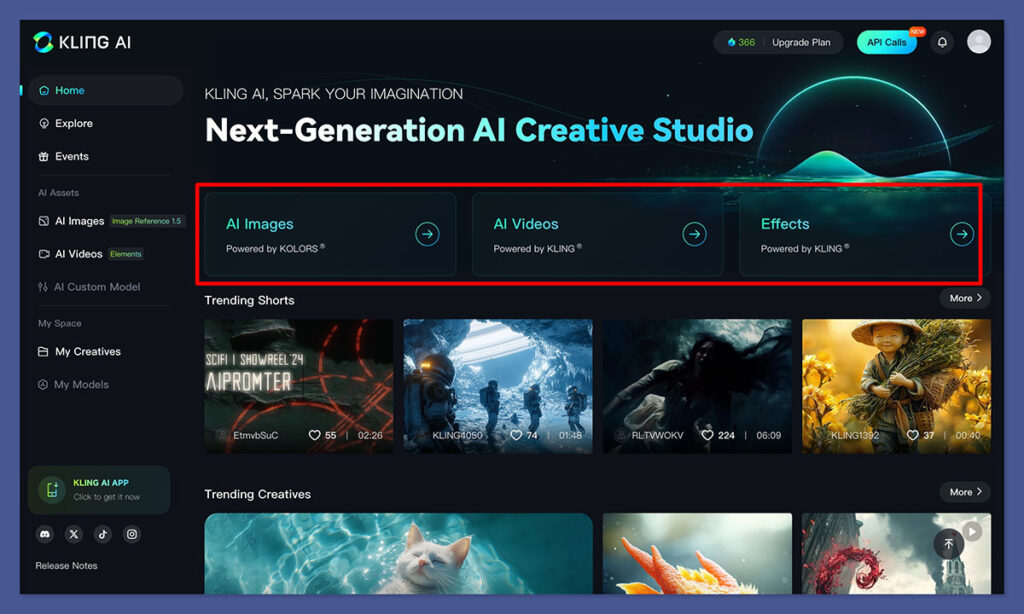
Kling AI focuses on realistic text-to-video and image-to-video generation. It establishes logical motion of character and preserves visual continuity between shots. The editor incorporates trimming and rudimentary color controls. Kling favors longer clips than most of his contemporaries. The software is appropriate with narrative clips and short sequences that require realistic motion requirements.
Key Features
• Text-to-Video Engine: Builds scenes from simple descriptions.
• Character Continuity: Maintains realistic motion across scenes.
• Scene Preview: Visualize clips before rendering.
• Camera Logic: Suggests camera angles automatically.
• Narrative Mode: Designed for storytelling and dialogue scenes.
• AI Polishing: Cleans edges, shadows, and lighting.
• Smart Trim: Cuts unnecessary frames automatically.
• Voice Support: Add narration directly inside the editor.
• Available on: Web, Windows
• Overall: ★★★★☆ (4.5/5)
• Beginner-Friendly Tools: ★★★★☆ (4.4/5)
• Price: Standard $79.2/year; Pro $293.04/year
Advantages
• Strong motion realism and consistent character rendering.
• Text prompts produce scene-level camera and action suggestions.
• Supports longer clip durations for story continuity.
Disadvantages
• Interface prioritizes generation over deep manual editing.
• Fine-grained lighting control limited in current builds.
Personal Experience
I tested Kling AI for a short documentary-style video. I wrote a paragraph describing a person walking through a market, and Kling generated realistic shots that maintained motion flow. I appreciated how characters stayed consistent across different clips. The results felt cinematic, though some lighting tweaks were necessary. For creators producing story-based or narrative content, Kling AI is a top contender.
4. Pika Labs
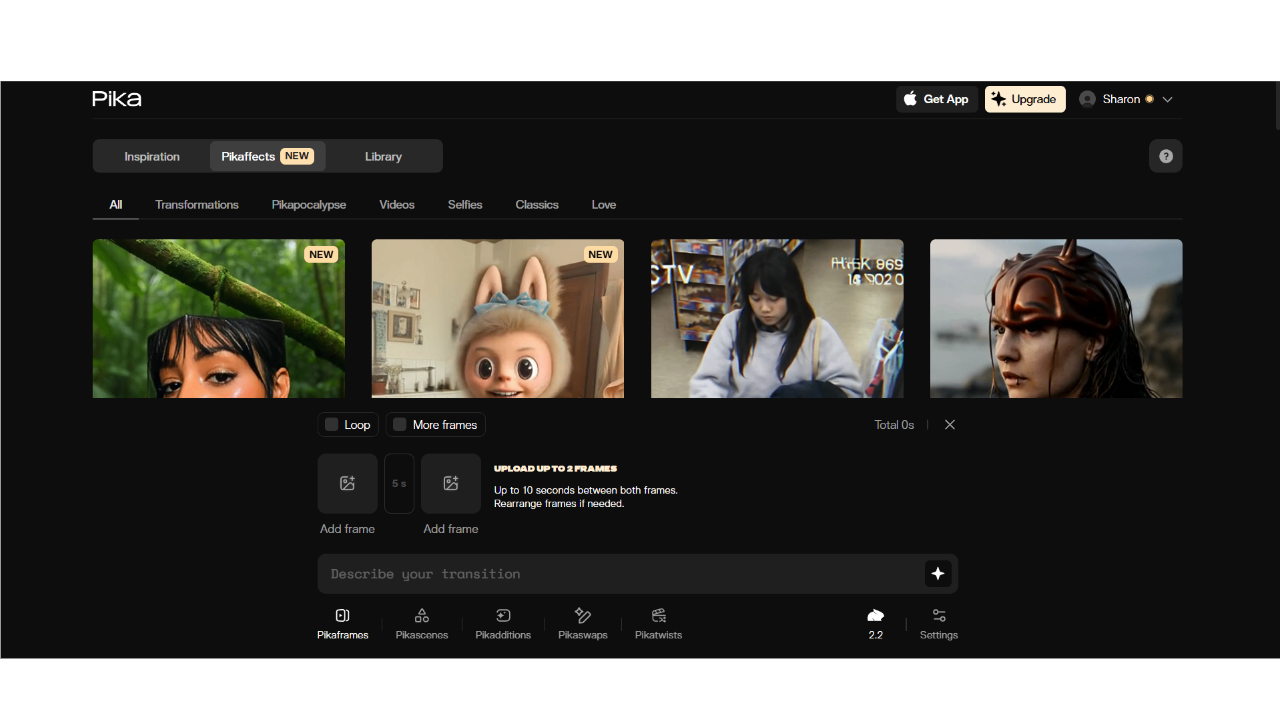
Pika Labs is a video editing program used to quickly create concepts. It generates stylistic high-contrast movement off of brief prompts. The timeline is straightforward, and it is intended to be quickly remixed. Speed and visual experimentation are the strength of Pika. It serves filmmakers who want to make mood-driven short clips and concept reels.
Key Features
• Prompt-to-Motion: Converts short phrases into stylized clips.
• Artistic Filters: Apply film, vaporwave, or abstract looks.
• Speed Render: Generates previews in seconds.
• Loop Creation: Ideal for GIFs or mood videos.
• Text Layers: Add animated titles or quotes.
• AI Color Enhancement: Adjusts tones automatically.
• Remix Timeline: Adjusts tones automatically.
• Export Flexibility: Download in various aspect ratios.
• Available on: Web, macOS
• Overall: ★★★★☆ (4.4/5)
• Beginner-Friendly Tools: ★★★★☆ (4.3/5)
• Price: From $8/month
Advantages
• Extremely fast rendering for rapid iteration cycles.
• Unique artistic styles not common in mainstream editors.
• Simple timeline keeps focus on creative prompts.
Disadvantages
• Output can be stylized, lacking photorealism.
• Export options are basic compared to full editors.
Personal Experience
I created concept visuals for a short film pitch using Pika Labs. The platform translated my prompts like “dreamy clouds and slow motion rain” into expressive animations within moments. It’s perfect for visual brainstorming — not realism, but imagination. I exported short loops for presentation, and they captured the tone perfectly. For creative experimentation, Pika Labs feels fresh and fast.
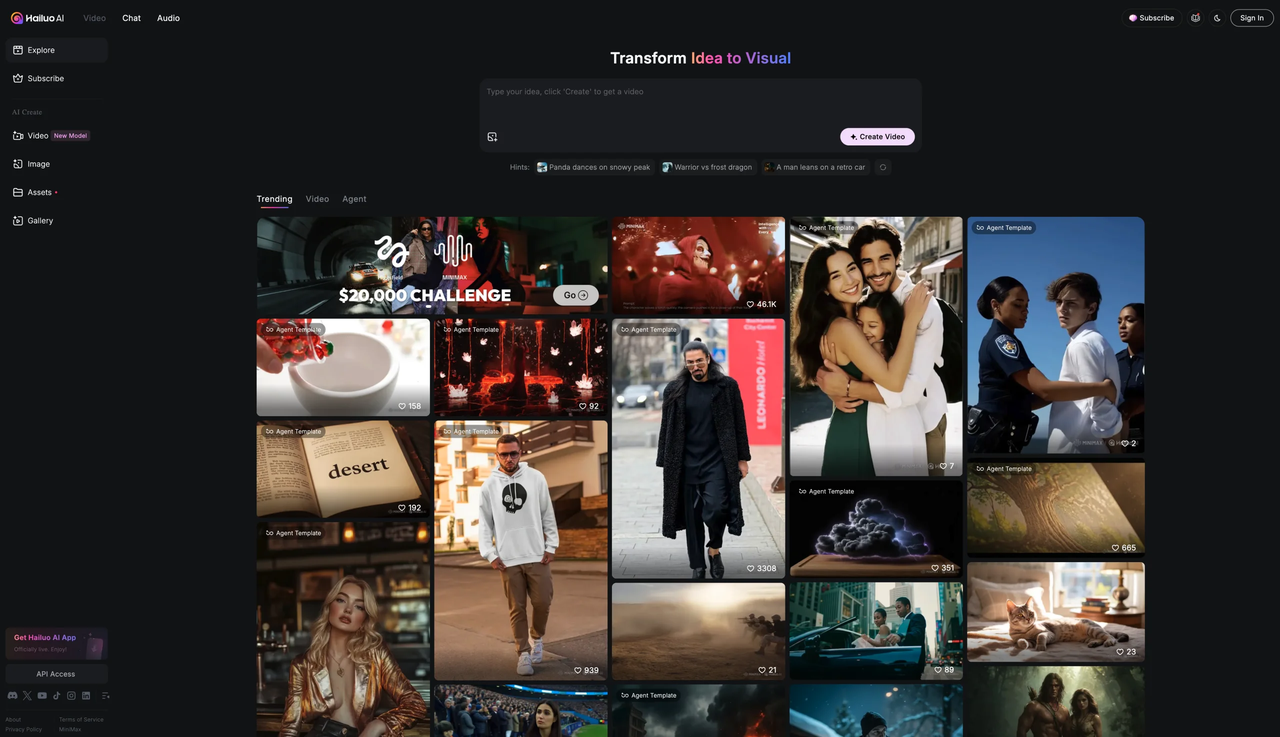
5. HailuoAI
HailuoAI provides director generation controls. Immediate parameters are camera angles, lens and shot types. The program is focused on the dynamics of movement and scene. Quick presets aid in minimizing trial and error. HailuoAI is the best at storyboarding and creating dramatic short clips that require realistic camera motion.
Key Features
• Camera Control: Choose angles, lenses, and movement.
• Scene Prompts: Create cinematic shots with simple text.
• Preset Library: Ready-made settings for film sequences.
• AI Storyboard: Converts script into frame sequences.
• Lighting Options: Customize brightness and contrast.
• Motion Focus: Simulates handheld or tracking shots.
• Quick Preview: Renders short test scenes fast.
• Export Formats: Multiple aspect ratios for films or ads.
• Available on: Web, Windows
• Overall: ★★★★☆ (4.3/5)
• Beginner-Friendly Tools: ★★★★☆ (4.2/5)
• Price: From $9.99/month
Advantages
• Camera and lens controls inside generative prompts.
• Fast director presets for cinematic motion.
• Good for dramatized social and promo content.
Disadvantages
• Results sometimes require manual stabilization and retiming.
• Interface complexity may overwhelm casual creators.
Personal Experience
I tested HailuoAI while building a cinematic trailer. The control over camera motion impressed me — I could simulate zooms and pans using simple text prompts. The AI storyboard feature converted my rough idea into shot plans, which I refined manually. For users wanting a directorial experience, HailuoAI brings film aesthetics into AI production.
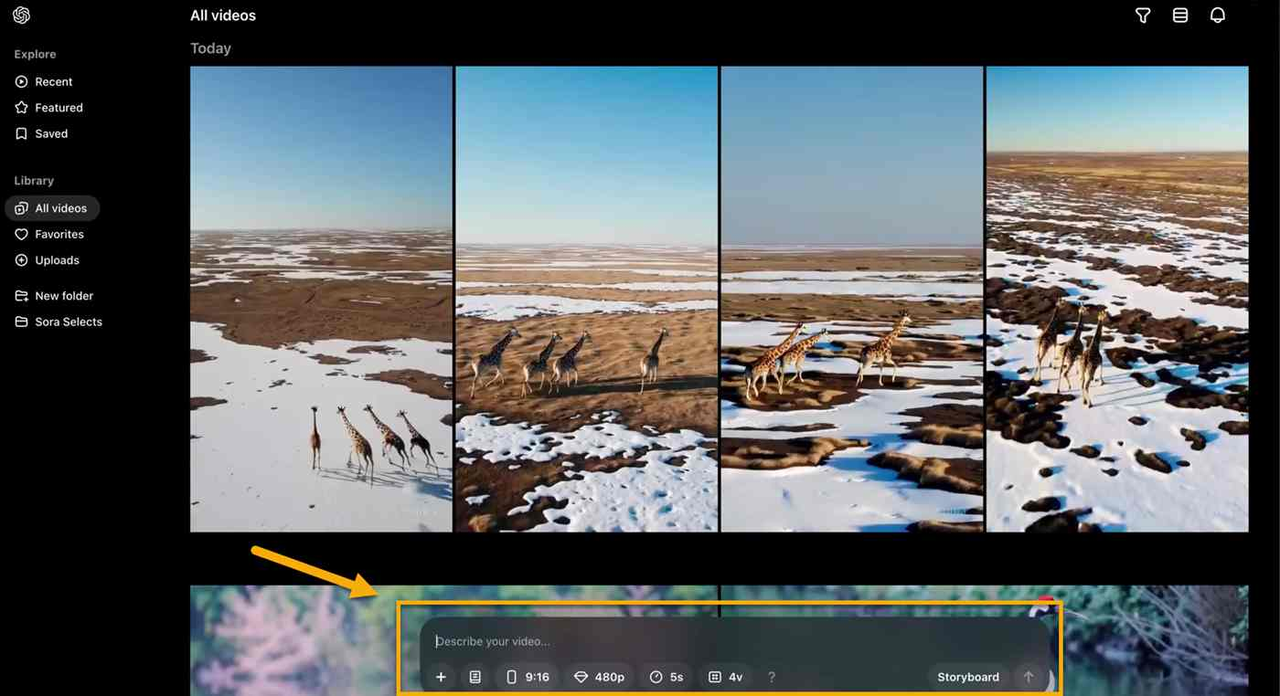
6. OpenAI Sora
OpenAI Sora is concentrated on the high-quality text-to-video generation. It focuses on uniform textures, light, and physics of movement. Sora can be effectively incorporated into the editing process that requires realistic B-roll and reference videos. The software is optimized to experimentation, prototypes and concept validation. Prompts are refined to ensure that outputs are production-ready.
Key Features
• Text-to-Scene: Generates lifelike sequences from detailed prompts.
• Lighting Physics: Simulates real-world illumination.
• Material Consistency: Keeps textures realistic.
• AI Refinement: Enhances clarity and smoothness automatically.
• Physics Integration: Simulates motion accurately.
• B-roll Generator: Ideal for filler footage or experiments.
• Scene Extension: Add or remove frames seamlessly.
• Custom Parameters: Adjust temperature, light, and angle.
• Available on: Web
• Overall: ★★★★☆ (4.2/5)
• Beginner-Friendly Tools: ★★★☆☆ (3.9/5)
• Price: Plus $20/month; Pro $200/month
Advantages
• Very high fidelity visuals and motion realism.
• Detailed control over scene composition through prompts.
• Rapid improvements and model updates from developer team.
Disadvantages
• Computational cost can be high for long outputs.
• Requires precise prompting skills for consistent results.
Personal Experience
I tested OpenAI Sora to generate a realistic ocean scene. The lighting physics were astonishing — reflections and motion felt natural. While it demands a powerful setup, the realism justifies the effort. For developers and video professionals needing lifelike simulation, Sora sets a new visual benchmark.
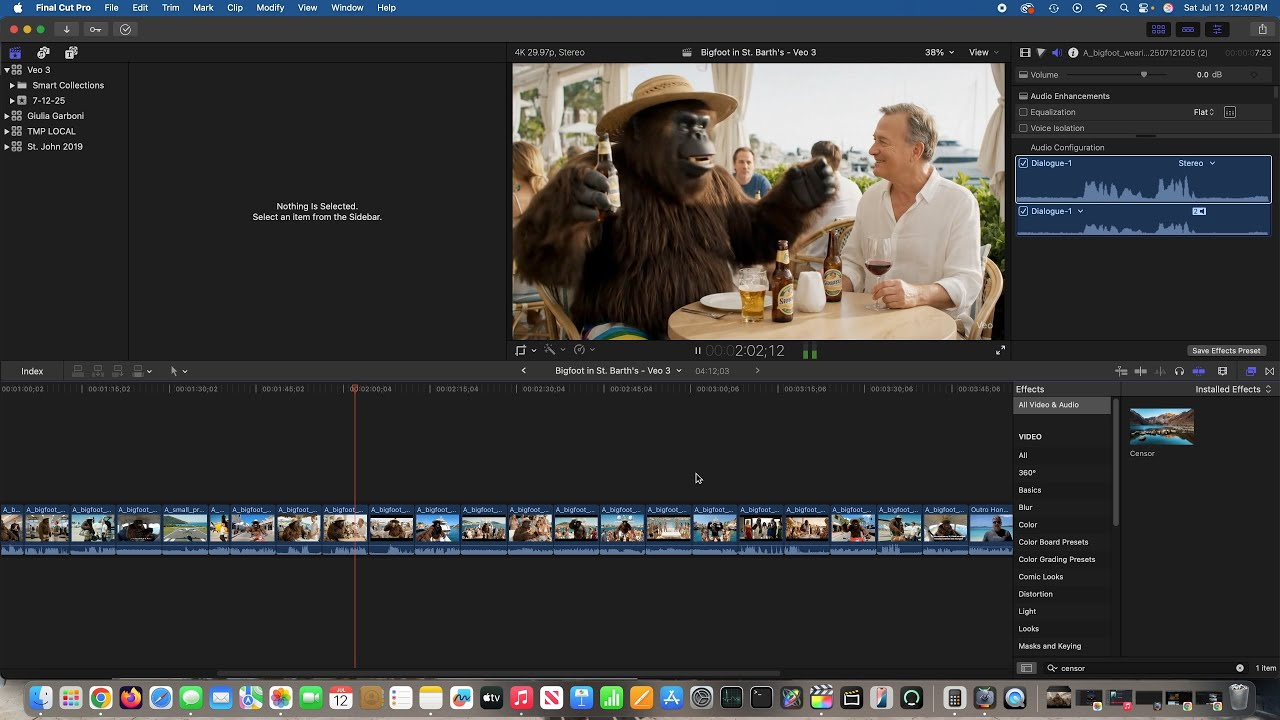
7. Google Veo
Google Veo is an audio-led generation with video creation. It processes speech, music and environmental audio cues within prompts. Veo is good in research-based work and audio sequences. The platform is compatible with trusted interoperation with standard editing timelines to polish post-production. It works on narrated explainers and audio-first content.
Key Features
• Audio Input: Converts speech or music to visuals.
• Sync Engine: Aligns animations with voiceovers.
• Speech Awareness: Detects tone for matching visuals.
• AI Narration Tools: Auto-generates subtitles and timing.
• Smart Templates: Ready for explainers and tutorials.
• Export Ready: Supports all standard aspect ratios.
• Cloud Workflow: Syncs edits across devices.
• Preview Panel: Test audio-visual harmony before export.
• Available on: Web
• Overall: ★★★★☆ (4.1/5)
• Beginner-Friendly Tools: ★★★★☆ (4.0/5)
• Price: Creator $54.99/month; Pro $159.99/month
Advantages
• Strong audio integration and synchronization tools.
• Research-grade stability and consistent outputs.
• Good for explainer videos with spoken narration.
Disadvantages
• Feature set leans toward research and dev audiences.
• GUI can feel sparse compared to consumer editors.
Personal Experience
I used Google Veo to create an audio explainer about AI safety. After uploading my voiceover, the tool generated relevant visuals and synced them perfectly. The alignment was frame-accurate. Though minimal in design, it delivers dependable, research-grade precision.
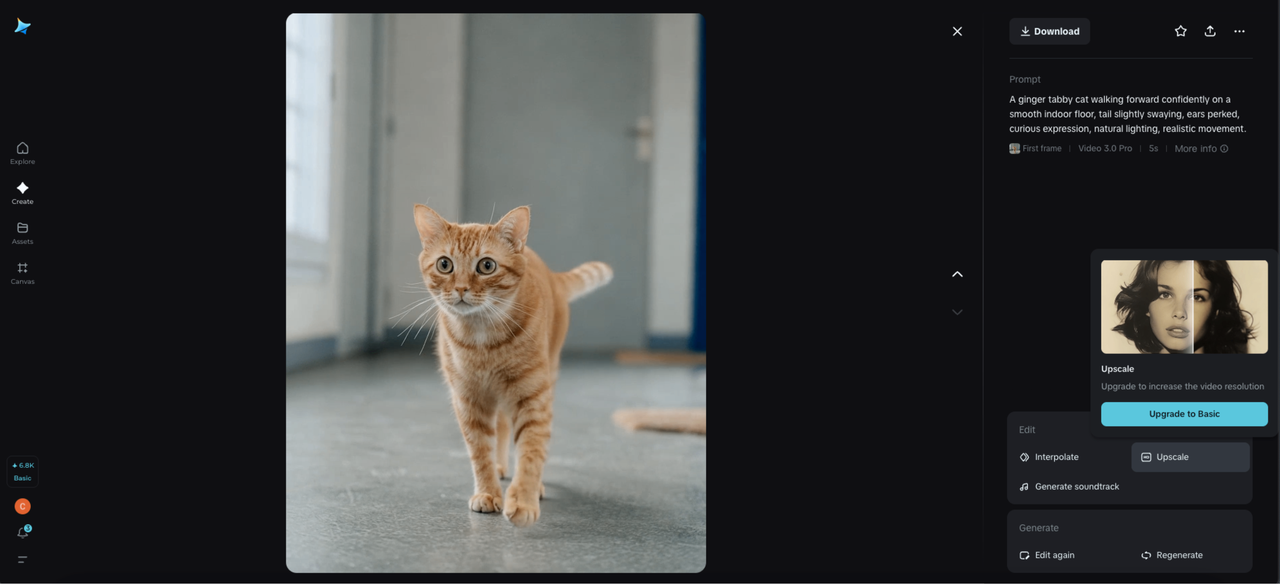
8. Seedance (ByteDance)
Seedance is a social-feed short-clip generation that is fast and scalable. The software manages the uniform character movement among clips. It fits in with short-form and batch exports. Seedance is speed-tuned and throughput-tuned to enable teams to generate a lot of variation in a short period of time.
Key Features
• Batch Generator: Produces dozens of clips simultaneously.
• AI Character Control: Keeps motion consistent.
• Template Library: Optimized for TikTok and Reels.
• Speed Mode: Prioritizes render time.
• Team Sync: Collaborative workspace for teams.
• Visual Refinement: Adjusts lighting and pacing uniformly.
• Auto Translation: Adds captions in multiple languages.
• Preview and Queue: Review before exporting batches.
• Available on: Web
• Overall: ★★★★☆ (4.0/5)
• Beginner-Friendly Tools: ★★★★☆ (4.0/5)
• Price: Basic $19.9/month; Pro $39.9/month
Advantages
• Optimized for high-volume short-clip creation.
• Quick batch generation and template reuse.
• Good motion continuity across multiple outputs.
Disadvantages
• Output rules vary by region and policy constraints.
• Some advanced controls need deeper prompting expertise.
Personal Experience
I produced a series of 15 short ad clips for social media using Seedance. The batch generation saved hours. The characters maintained smooth transitions between clips, and the batch export feature streamlined the workflow. Perfect for agencies or social managers handling multiple accounts.
9. Vizard AI
Vizard AI is a combination of a standard editing schedule with generating properties. It aims at editing-first workflows and includes AI supports, such as smart cuts and scene generation. The software is collaborative and can be exported to various formats. It can be used by editors who require AI assistance without moving the timeline.
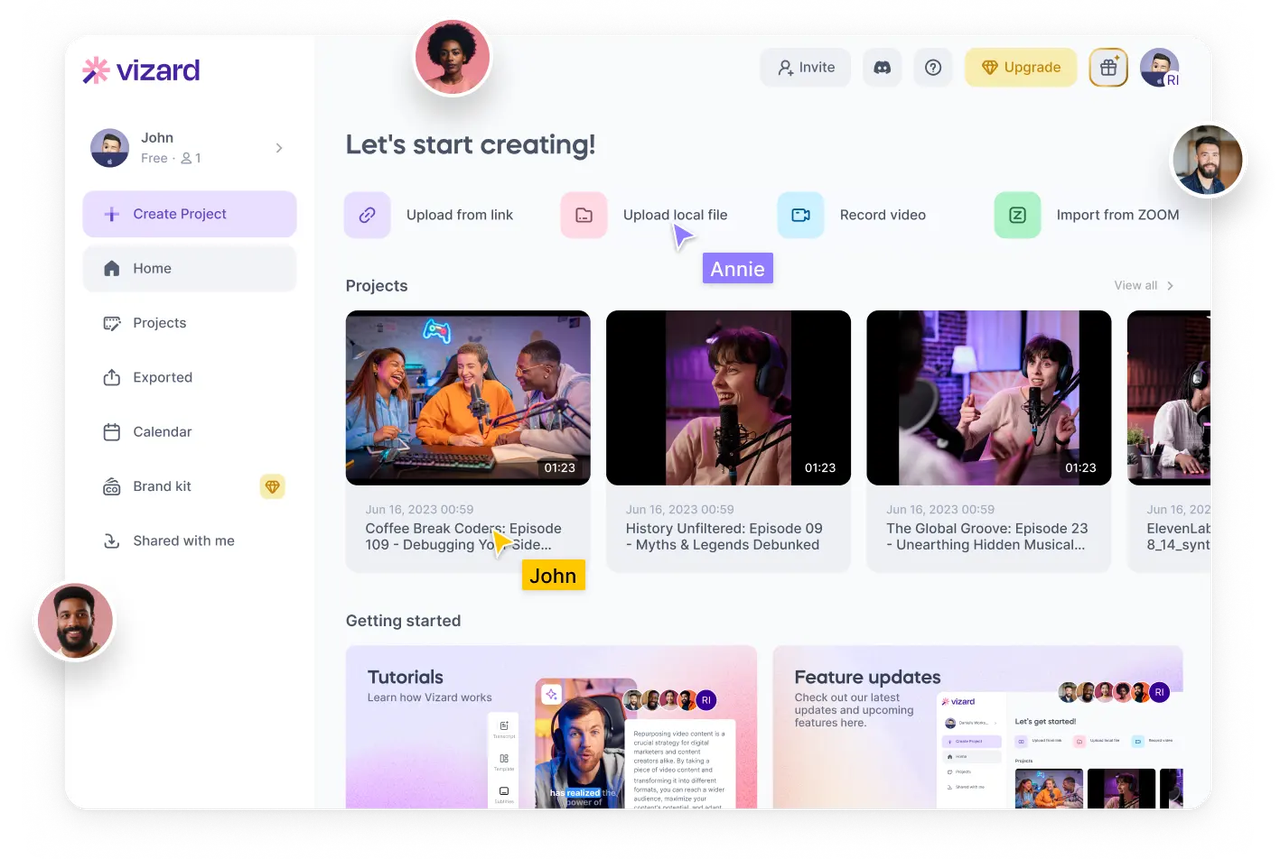
Key Features
• AI Timeline Edits: Smart cuts, trims, and scene organization.
• Collaboration Tools: Invite teammates to co-edit.
• Scene Builder: Auto-creates visuals from descriptions.
• Content Refiner: Cleans up lighting and noise.
• Smart Voice Add: Syncs voiceover timing automatically.
• Template Selection: For educational and marketing videos.
• Clip Summary: Generates auto-highlights.
• Cross-Platform Export: Works with other editors like Premiere Pro.
• Available on: Web, Windows, macOS
• Overall: ★★★★☆ (3.9/5)
• Beginner-Friendly Tools: ★★★★☆ (3.8/5)
• Price: Creator $14.5/month
Advantages
• Strong integration of AI assistants into timeline editing.
• Collaborative features for team-based production.
• Good balance between automated and manual controls.
Disadvantages
• Generation styles are less varied than pure generators.
• Advanced AI features locked behind higher plans.
Personal Experience
I collaborated with a small production team using Vizard AI for internal training clips. The shared timeline allowed three people to edit simultaneously. The AI automatically trimmed filler sections and aligned transitions. It’s practical for teams who want automation without giving up timeline control.
10. Vidu
Vidu is focused on cheap, practical batch video generation. It is concerned with the re-purposing of long-form content into short clips. The software consists of automatic captioning and template scene assembly. Vidu suits developers who have to repackage content across multiple platforms, with little hand editing.
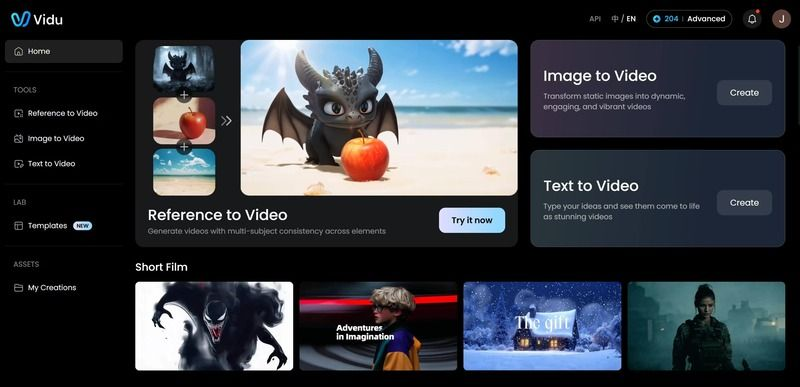
Key Features
• Clip Repackager: Turns long videos into short segments.
• Auto Captions: Adds subtitles accurately.
• Scene Templates: Builds ready-to-post layouts.
• AI Highlights: Detects engaging parts automatically.
• Batch Export: Converts multiple files at once.
• Text Overlay: Adds on-screen messages quickly.
• Social Scheduler: Posts directly to multiple platforms.
• Quick Export Options: Standard, HD, or 4K formats.
• Available on: Web
• Overall: ★★★★☆ (3.8/5)
• Beginner-Friendly Tools: ★★★★☆ (3.7/5)
• Price: Standard $10/month; Premium $35/month
Advantages
• Efficient repurposing of long videos into short clips.
• Automated captions and scene segmentation included.
• Cost-effective for high-volume repackaging tasks.
Disadvantages
• Editing depth is limited compared to full editors.
• Visual styles can feel formulaic for some projects.
Personal Experience
I used Vidu to repurpose webinar recordings into short-form videos for LinkedIn. It automatically detected key talking points, added captions, and formatted each clip for social posting. It saved enormous time — turning a one-hour video into multiple shareable pieces within minutes. It’s ideal for marketers who need quick, cost-effective content turnover.
Tips for Selecting AI-Enhanced Video Editing Software in 2026
I’ve spent years juggling tight deadlines and diverse content formats, learning that the right AI-powered video editing software isn’t just about flashy features—it’s about efficiency, compatibility, and enhancing creativity. Picking a tool that fits your workflow can transform hours of manual editing into minutes of automated production.
- Content Creation Needs: You should identify the type of videos you plan to create. Some software excels at short-form social clips, while others are better for cinematic storytelling or music visuals. Knowing your focus helps you choose a tool tailored to your content style.
- Integration with Existing Tools: You want a solution that works smoothly with the programs you already use, like Premiere Pro, Canva, or scriptwriting apps. Seamless integration reduces repetitive work and helps you maintain a faster production pace.
- Learning Curve and Usability: You need a platform that matches your skill level. Some AI video generators are beginner-friendly with templates and tutorials, while others may require more experience to harness advanced features. Choose one that won’t slow down your workflow.
- Customization and Control: You should ensure the software allows editing of templates, transitions, and AI-generated scenes. Even with automation, having manual controls for fine-tuning ensures your videos match your brand or creative vision.
- Audio and Voice Capabilities: You want integrated AI voiceovers, music synchronization, or sound enhancements. These tools save time and enhance the overall quality, making your video more engaging without extra software.
- Cross-Platform Accessibility: You should consider whether the tool is available on multiple devices—desktop, mobile, or cloud-based. Working across platforms gives you the freedom to edit wherever inspiration strikes.
- Output and Distribution Options: You need to check if the software exports in resolutions and formats optimized for social media, presentations, or streaming. Some platforms even offer direct uploads to YouTube, TikTok, or Instagram, saving you additional steps.
Choosing software based on these considerations ensures that you not only gain efficiency but also retain creative flexibility. I’ve found that tools meeting these criteria save time, reduce stress, and let me focus on producing content that truly connects with my audience.
Conclusion
All people select tools on the basis of personal workflow and requirements. CapCut is featured with social-first speed, wide-ranging generative capabilities, and friendly editing after years of in-the-field testing. CapCut is faster at ideation, enables one-click production of video, and retains manual controls. For creators prioritizing fast turnaround, affordable access, and many AI avatar options, CapCut gets the strongest recommendation here. The other software on this list has obvious niches. Others are masters of the camera in film. Some are masters of audio-reactive visuals. Otherwise, some are batch repurposing. Generally, CapCut is the best choice among the majority of short-form creators and teams.
FAQs
1.Could you recommend video editing software with video AI generator for me?
CapCut video AI generator is the recommended software. It combines Instant AI Video creation, AI avatars, voice cloning, and templates in a single platform, ideal for professional and social-short-form workflows.
2.Can CapCut generate a full AI video from just a script?
Yes. CapCut’s Instant AI Video creates complete videos from a script and chosen style. Manual edits can refine timing, transitions, and audio.
3.Are AI avatars safe to use commercially in CapCut?
CapCut provides licensed avatars and asset libraries. Confirm commercial license clauses before publishing brand-critical content.
4.Will video editing software replace manual editing entirely?
CapCut video editing software with video AI generator automates many tasks, but manual editing remains essential for fine control. Automation speeds workflows, but human oversight preserves quality.

.jpg)